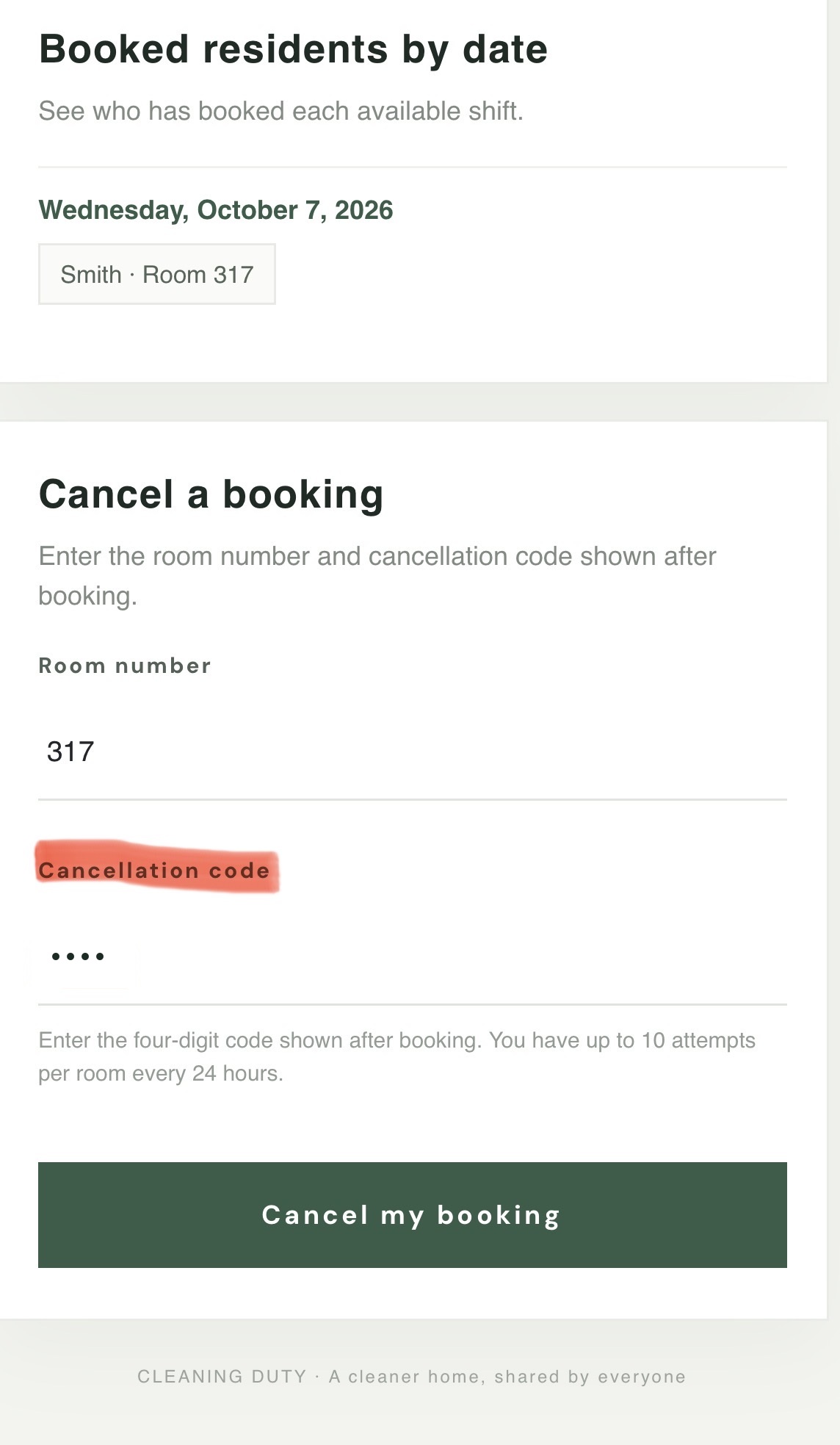
Check available shifts
Open the booking homepage and enter your room number. The calendar will show dates available. The page also lists booked residents by date, including their names and room numbers.
Book a shift
- Enter your room number and name.
- Select an available date on the calendar.
- Select Book this date.
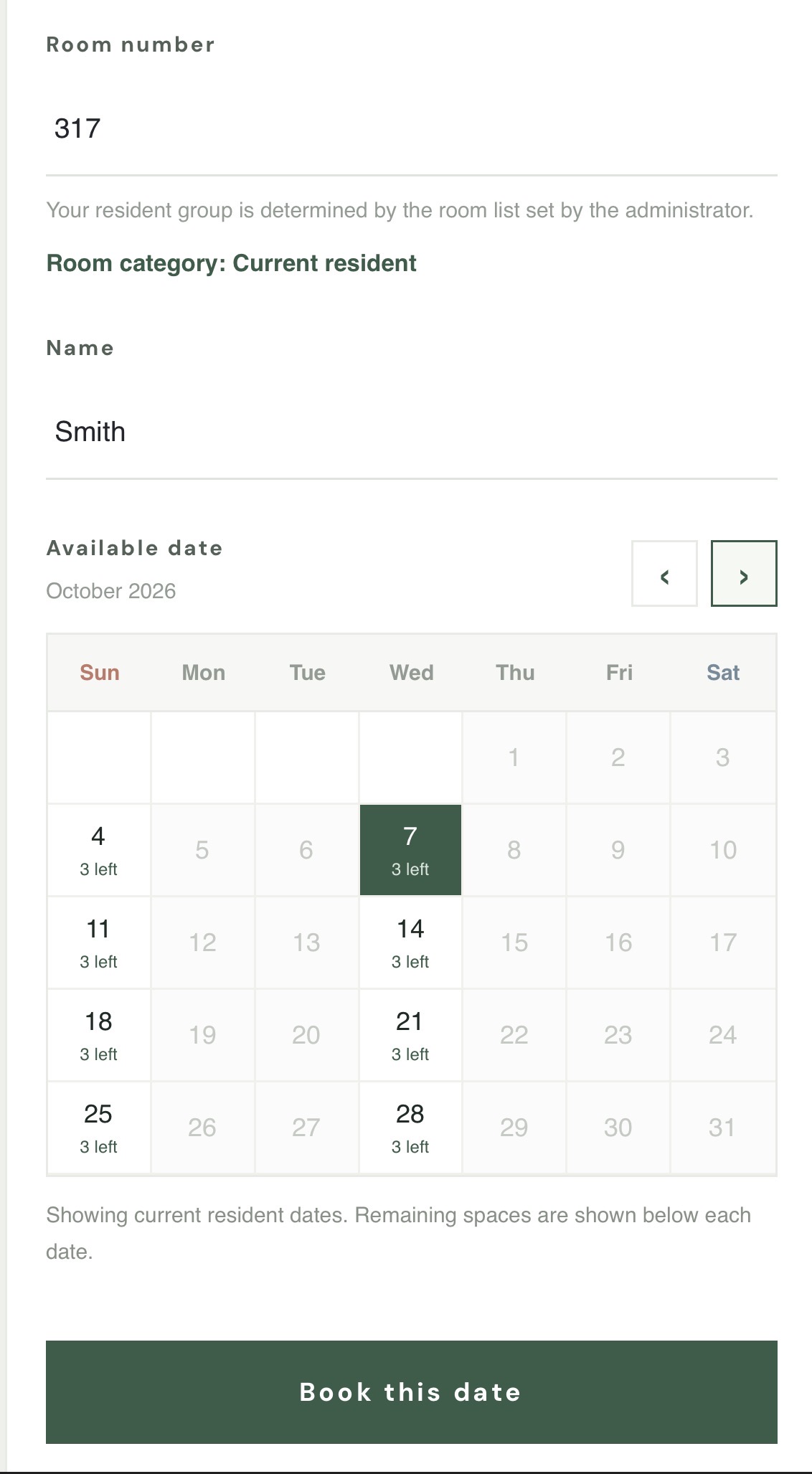
Each room can have one active booking.
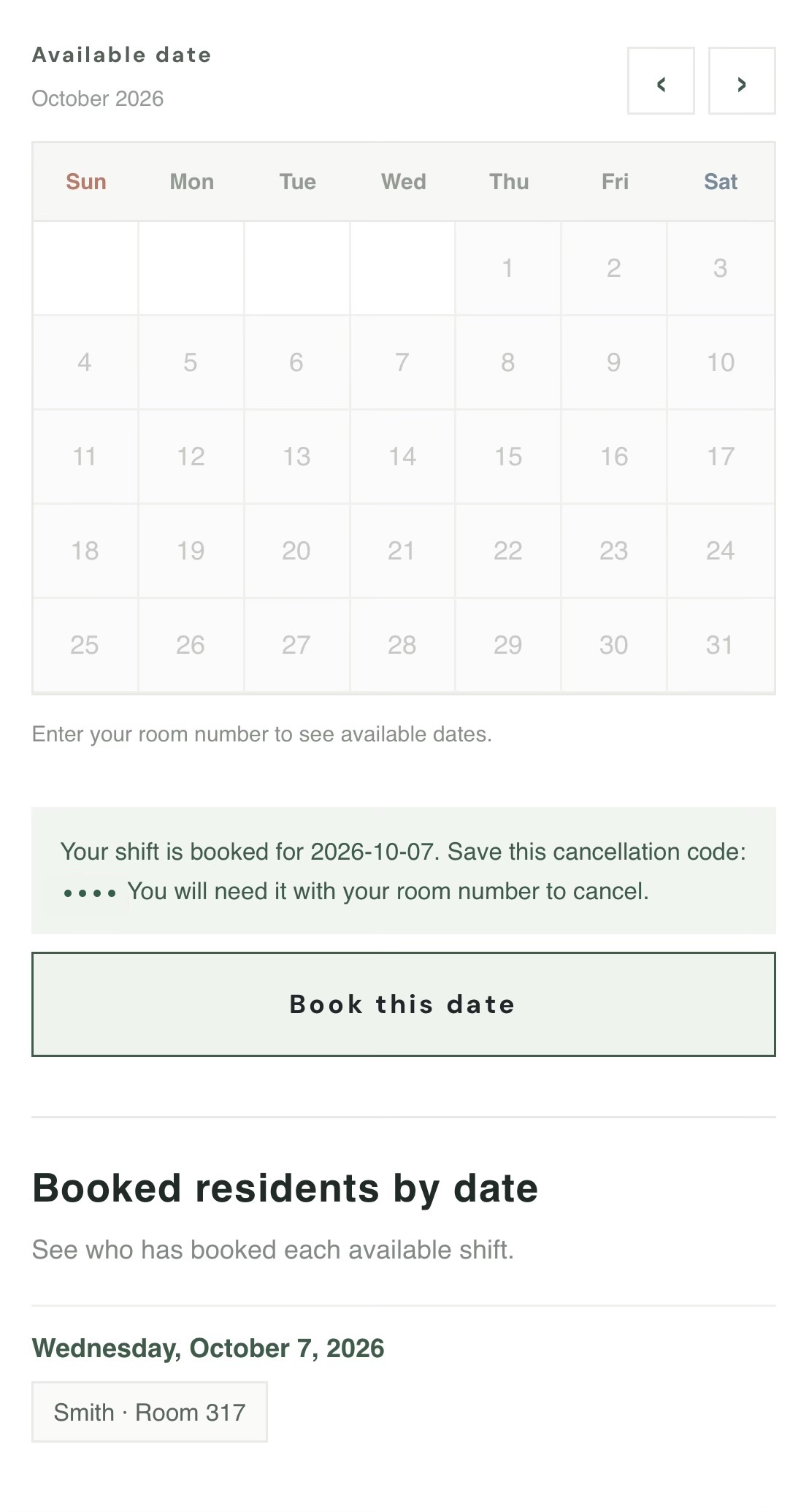
Cancel a booking
- In Cancel a booking, enter your room number and cancellation code.
- Select Cancel my booking and confirm.
New bookings use a four-digit code. You can make up to 10 cancellation attempts per room in each 24-hour period. If you reach the limit, try again after 24 hours.
If you forget your cancel code, please contact the RA.